Home › Help › Install and link the companion
Install and link the companion
The ACR companion is a small Windows app that sends your times and setups to the site, on its own.
- It reads the game's save files.
- Nothing is sent until you link it to your account.
You need Windows 10 or 11 and an account on the site. It takes 2 minutes.
1. Download
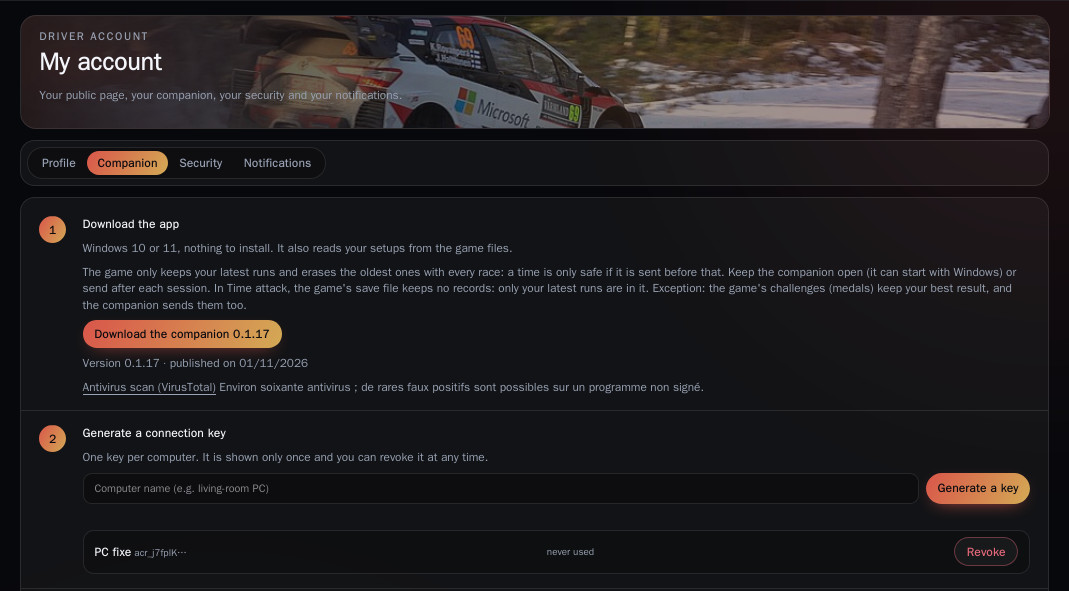
On the site: My account › Companion › Download the companion. There is nothing to install, just run the file.
The program isn't signed, so Windows may show a warning the first time. Click “More info”, then “Run anyway”. The Antivirus scan (VirusTotal) link lets you check the file.
2. Generate your key
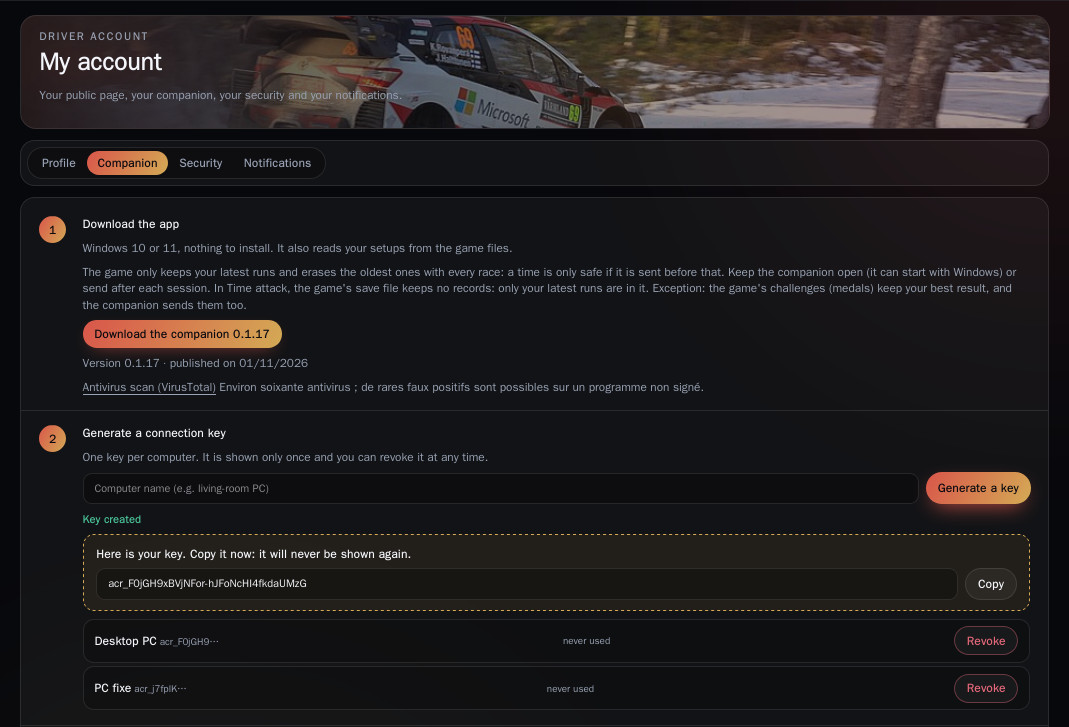
Still in My account › Companion, in step 2, give your key a name (e.g. “Desktop PC”), then click Generate a key.
- ⚠️ Copy it right away: it is shown only once.
- One key per computer. It can only send your times and gives access to nothing else.
- Revoke turns it off at any time (button next to the key in the list).
3. Link the companion
On first launch, after a notice about what it reads and sends, the First settings window opens:
- interface language;
- Webapp connection: paste your key;
- Updates: install automatically, or just get a notice.
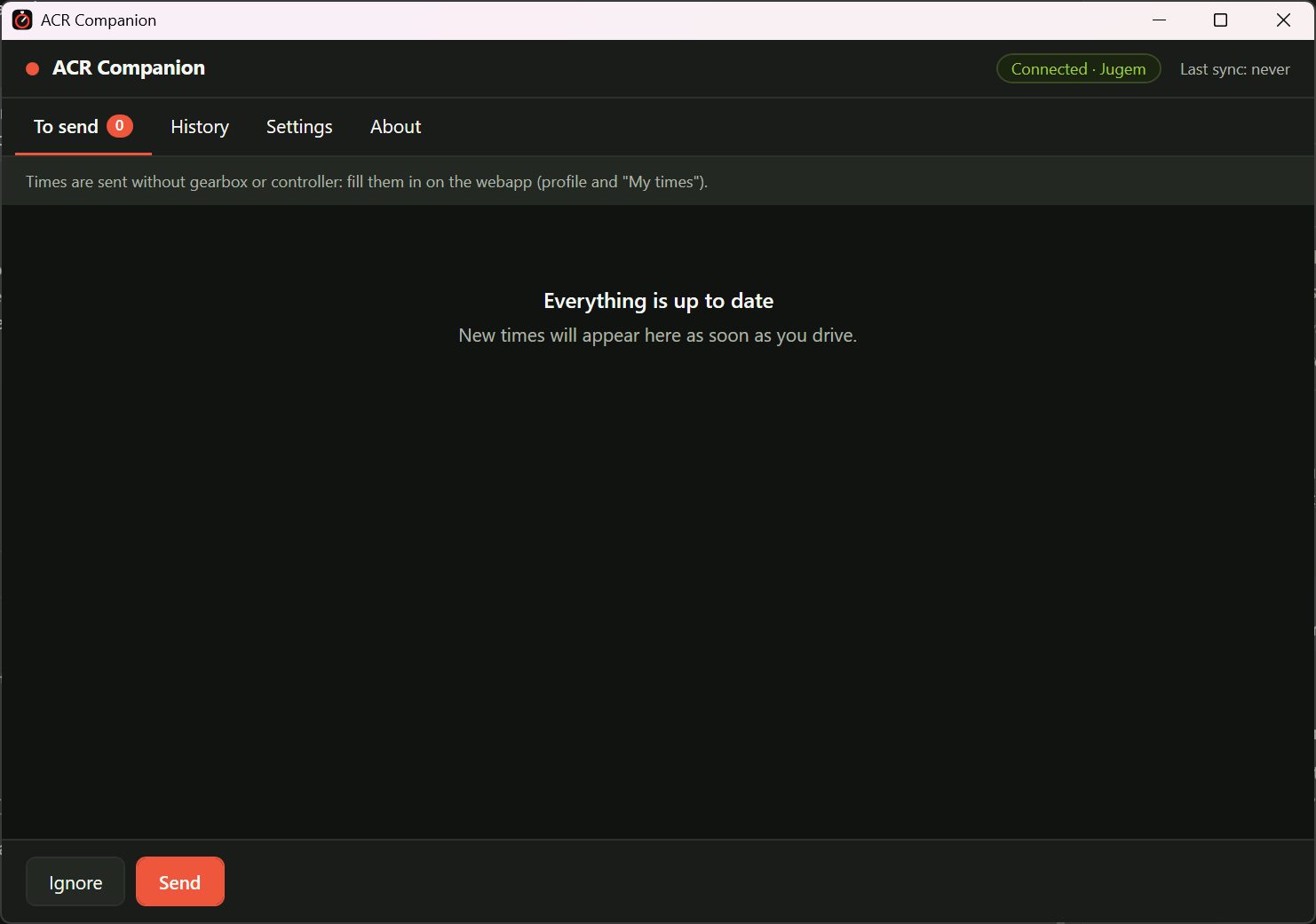
Once the key is pasted, the header changes from Not connected to Connected · your name. Skipped this step? Click “Not connected” at the top of the window.
4. After that, there's nothing left to do
On a new install, everything is automatic:
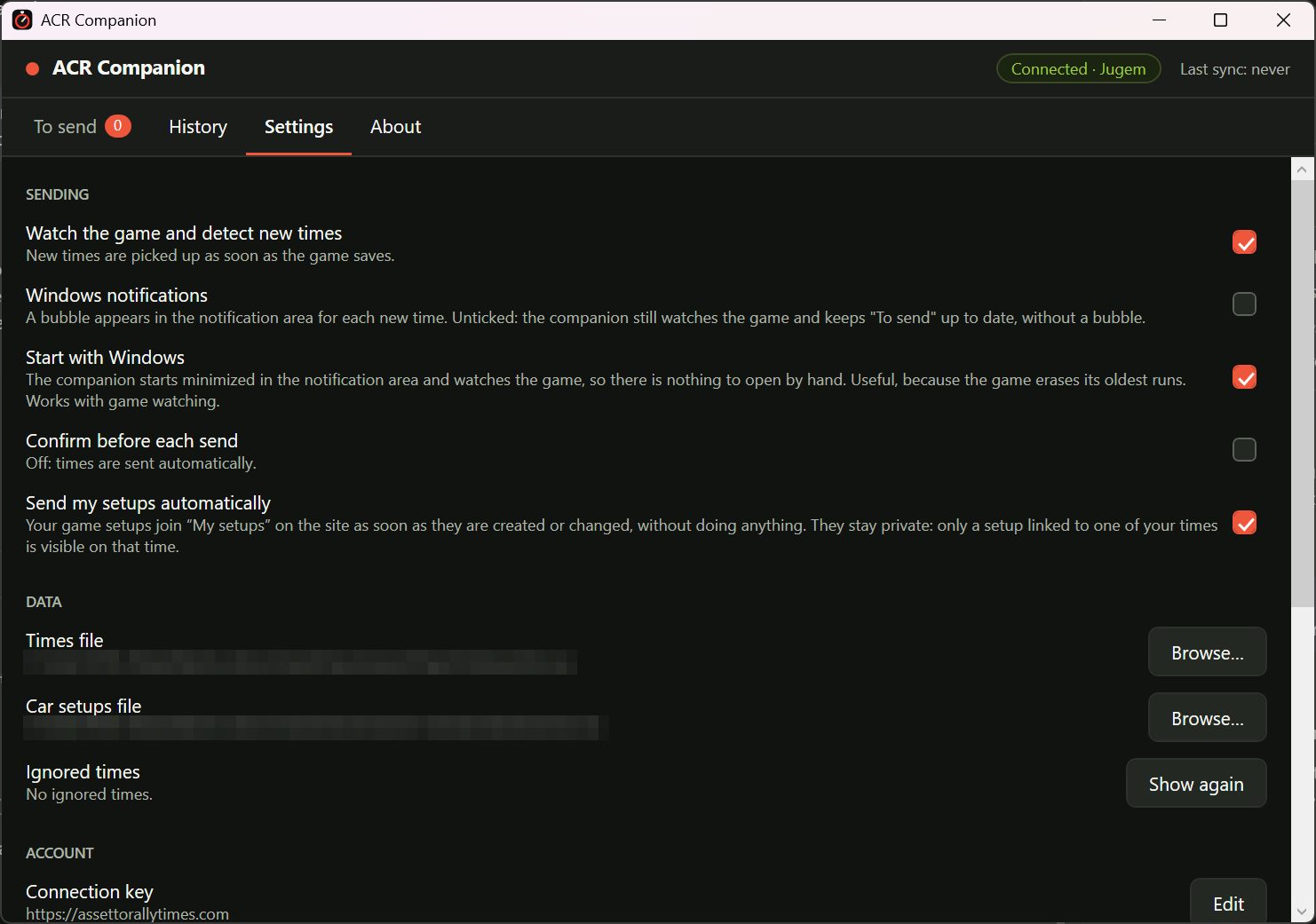
- Start with Windows: it starts minimized next to the clock.
- Watch the game: each time is picked up as soon as the game saves it, then sent to the site.
- Send my setups automatically: they land, privately, in My setups.
- Updates install by themselves.
The cross closes the window but keeps it running. To stop it: right-click its icon › Quit.
5. Prefer to approve each send?
In Settings › Sending, tick Confirm before each send. New times then wait in the To send tab:
- Send posts them to the site;
- Ignore drops them for good (Settings › Data › Ignored times › Show again to undo).
The History tab lists what has already been sent. Turn off the Windows bubble for each new time with Windows notifications.
6. The trace of your stage: For or Against
During a stage, the companion records your car's speed and position (read-only from the game's shared memory, never your name) and sends this trace with your time. On the site, a View the trace button opens the stage coloured by your speed, with your sectors, and compares it with another driver.
- Against (default setting): only you can see the trace of your times.
- For: other drivers can see and compare the trace of your times.
You choose in My account › Companion › Driving traces, and it changes right away for all your times, including those already sent.
- On your own row of a ranking or a challenge: your trace alone. On another driver's row (who chose "For"): their trace against yours, if you have one on that stage. To compare with the leader, click the leader.
- To record nothing, untick Record the trace of my stages in the companion settings.
- The trace is indicative: the official time stays the game's. Only times set with the companion open during the stage have a trace.
7. Good to know
- ⚠️ The game erases its older runs with every race, and in Time attack its save keeps no records. A time is only safe once it's sent: keep the companion running.
- The gearbox isn't in the game's files: set it by editing the time in My times.
- A car or stage the site doesn't know yet? The time waits on the server and shows up as soon as it's added. Nothing is lost.
- Something wrong? Settings › Support › Diagnostic information copies a report without your key or your times, to paste in the help channel on Discord.