Home › Help › My times: find, complete, export
My times: find, complete, export
My times is your garage: all your times, sent by the companion or added by hand, and your progress stage by stage.
The game records neither the gearbox nor the setup you used: this is where you fill them in, one time at a time or several at once. A time added by hand does not count in the leaderboards: only the companion feeds them.
1. Read your stats
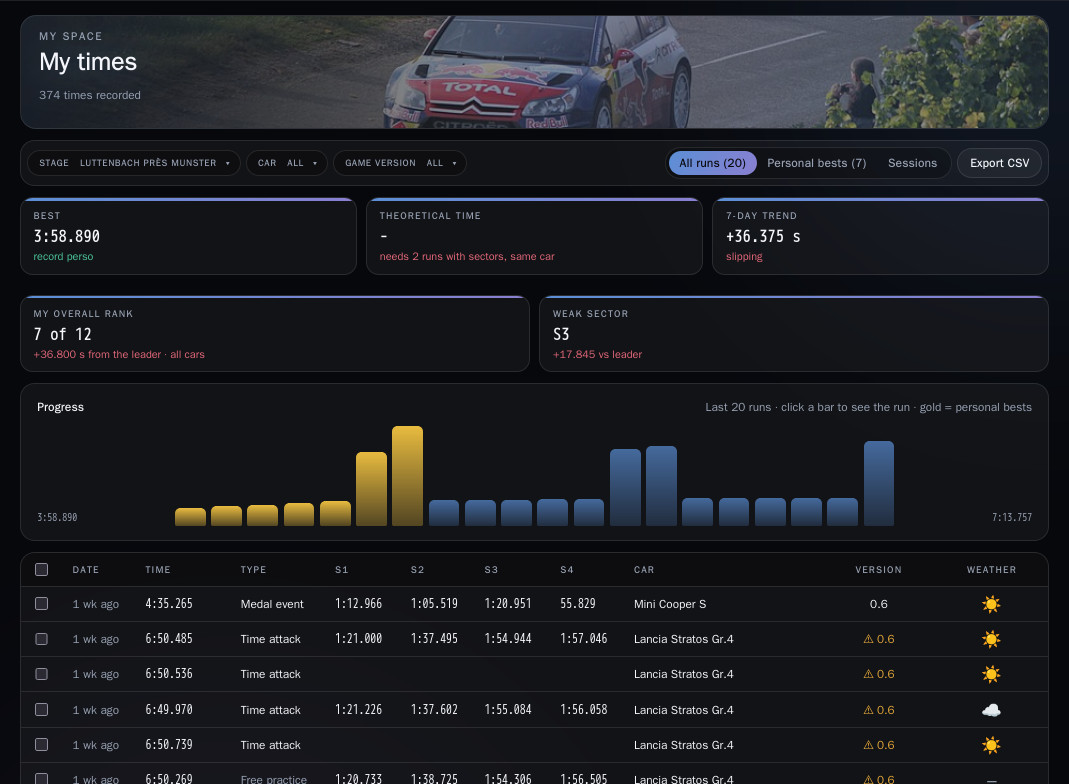
Pick a Stage (and, if you like, a Car or a Game version): the top of the page sums up your progress.
- Best: your personal best.
- Theoretical time: your best sectors put end to end, and the time you would gain by chaining them. You need at least two runs with sectors, in the same car.
- 7-day trend: your best time of the last 7 days compared with the one before. A negative gap (in green) means you are improving; otherwise "stable" or "slipping".
- My overall rank: your place in the stage's overall standings, all cars combined, and your gap to the leader (see the Leaderboard guide).
- Weak sector: the sector where your best run loses most against the leader's. "Nothing to report" if you lead.
The Progress chart shows your last 40 runs, one bar each; gold bars are personal bests, and a click on a bar opens the run. Sectors come from the companion: a time added by hand has none.
2. Your sessions
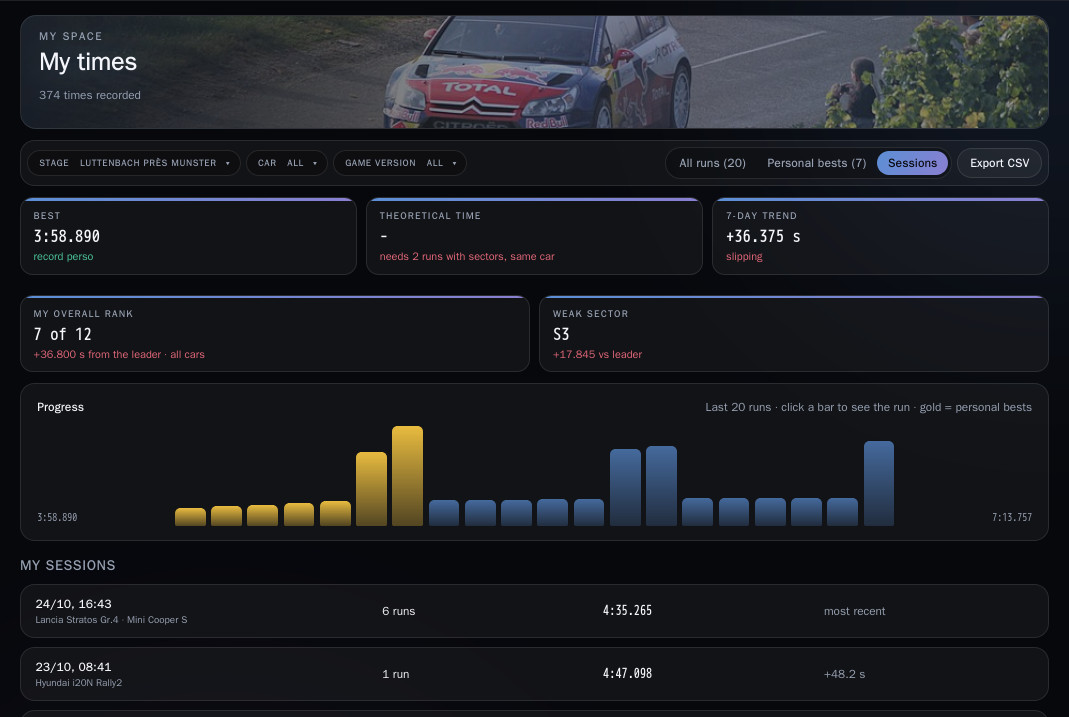
The Sessions view, next to All runs and Personal bests, groups your runs: those less than 4 h apart form a session. Each row gives the number of runs, the best time and a marker: best session, most recent, or the gap to your best session.
Click a session to unfold it: for each run, the real time, the penalties, the time without penalties and your gap on each sector.
3. Find a time
At the top of My times: the Stage, Car and Game version filters, then three views.
- All runs;
- Personal bests: only the runs that beat your best at the time (★ in the table);
- Sessions: runs grouped by session, with penalties and sector gaps.
A free practice run is listed but does not count in the leaderboards.
4. Open a run
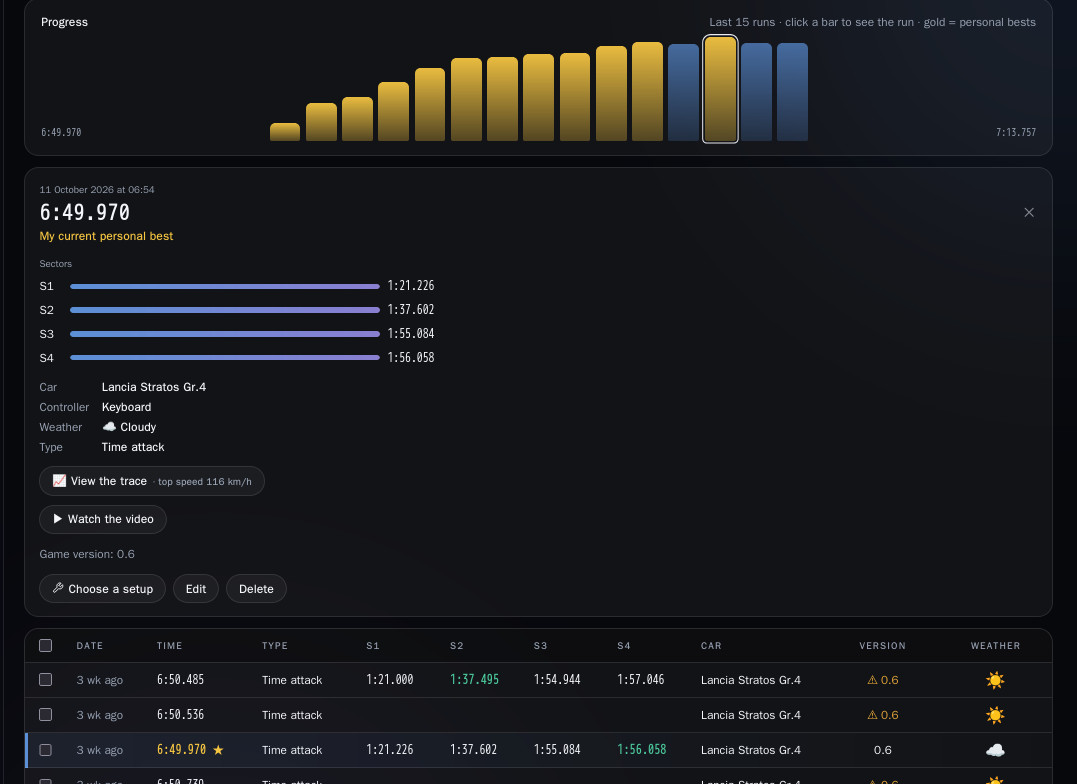
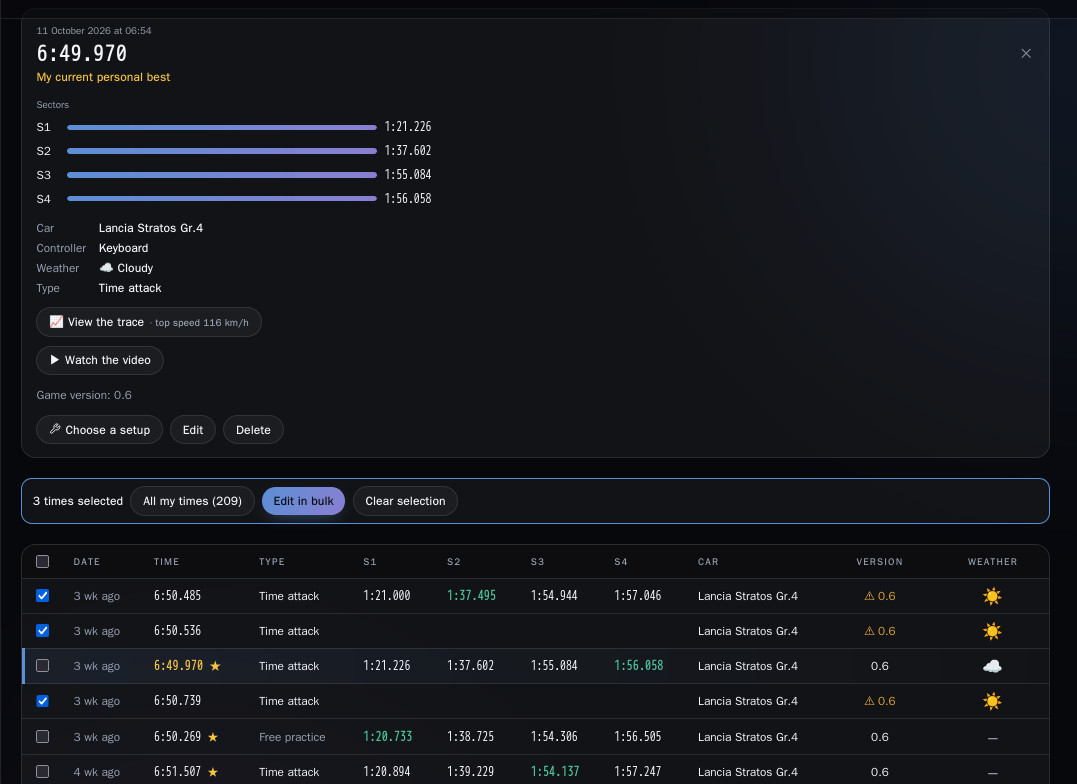
Click a row in the table, or a bar in the Evolution chart. The detail shows the time, the gap to your best, your sectors compared with your best run, then the car, controller, weather and race type. The ▶ Watch the video button opens your YouTube link: to add or remove one, click ▶ Add a video (or Edit, "YouTube video" field). The Screenshot and Setup links appear when they exist.
The game version comes from the build when it is known. Otherwise it is guessed from the date (⚠) and you can set the right one with modifier.
If the companion recorded your stage, a View the trace button appears in the detail: the map coloured by your speed, the speed profile and your sectors (see the guide "Install and link the companion", section 6). The time of a game challenge has the race type Challenge.
5. Edit a time, give it its setup and video
In the detail: Edit, or Choose a setup if the run has none.
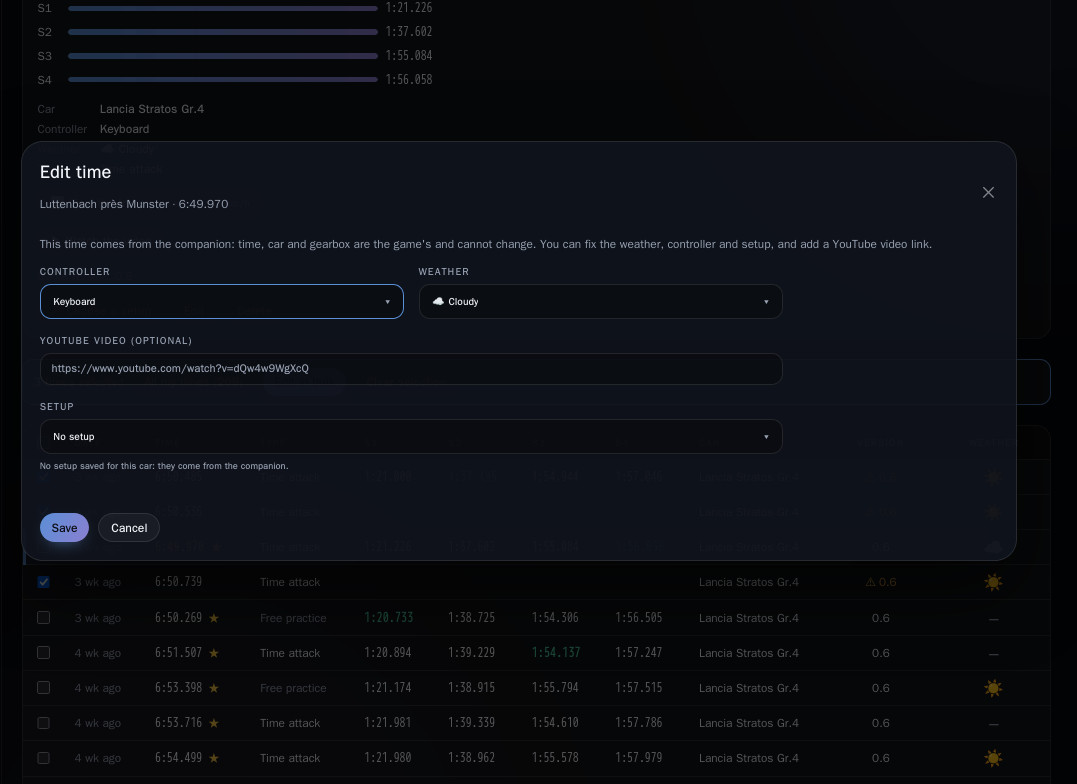
- Companion time: the time, car and gearbox are the game's and do not change. You fix the weather, the controller and the setup.
- Time added by hand: everything can be edited (time, car, gearbox, race type, notes).
The setup is picked from your setups for that car, the ones the companion sent. The game does not say which one was used: it is up to you to choose.
The video: paste a YouTube link in the "YouTube video" field of Edit (or click ▶ Add a video in the detail). Other hosts are not accepted for now. The ▶ Watch the video button then shows in the detail, for other drivers too, and emptying the field removes it.
Delete removes the time for good. ⚠ A time sent by the companion comes back at the next sync as long as it is still in the game files.
6. Several times at once
Tick the boxes on the left of the rows; the header box ticks every time shown. A bar appears: N times selected, All my times (N) to select everything, Edit in bulk and Clear selection.
7. Edit in bulk
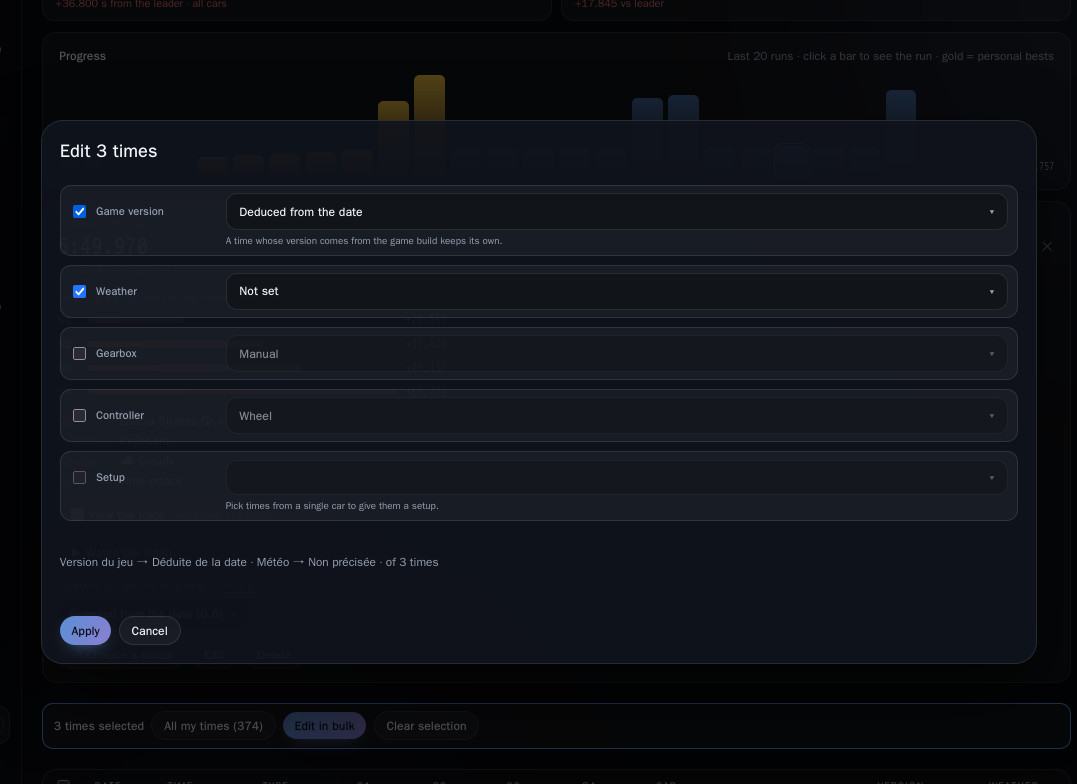
Tick the fields to change, pick a value, then Apply: Game version, Weather, Gearbox, Controller and Setup.
- A time whose version comes from the game build keeps its own.
- For Setup, the ticked times must be for the same car: filter by Car to go faster.
8. Export
Export CSV, next to the views, downloads mes-chronos.csv: the list shown, filters included, ready to open in Excel.