Home › Help › The leaderboard: choose, filter, find your place
The leaderboard: choose, filter, find your place
The leaderboard gathers the times of every driver on the site.
The Leaderboards entry in the menu opens the home page: it takes you to a stage.
What is the "scratch"?
The scratch is the overall standings of a stage: all cars together. Each driver has a single row there: their best time on the stage, whatever car they used. Whoever is first on the scratch holds the stage record.
A car class (H1, H3, K11, WR Evo2…) groups similar cars. When you pick a class, you compare like with like, and each class has its own best time (Best per class). With no filter, the home page and the leaderboards show the scratch; the #5 badge on a card is your place on the scratch for that stage.
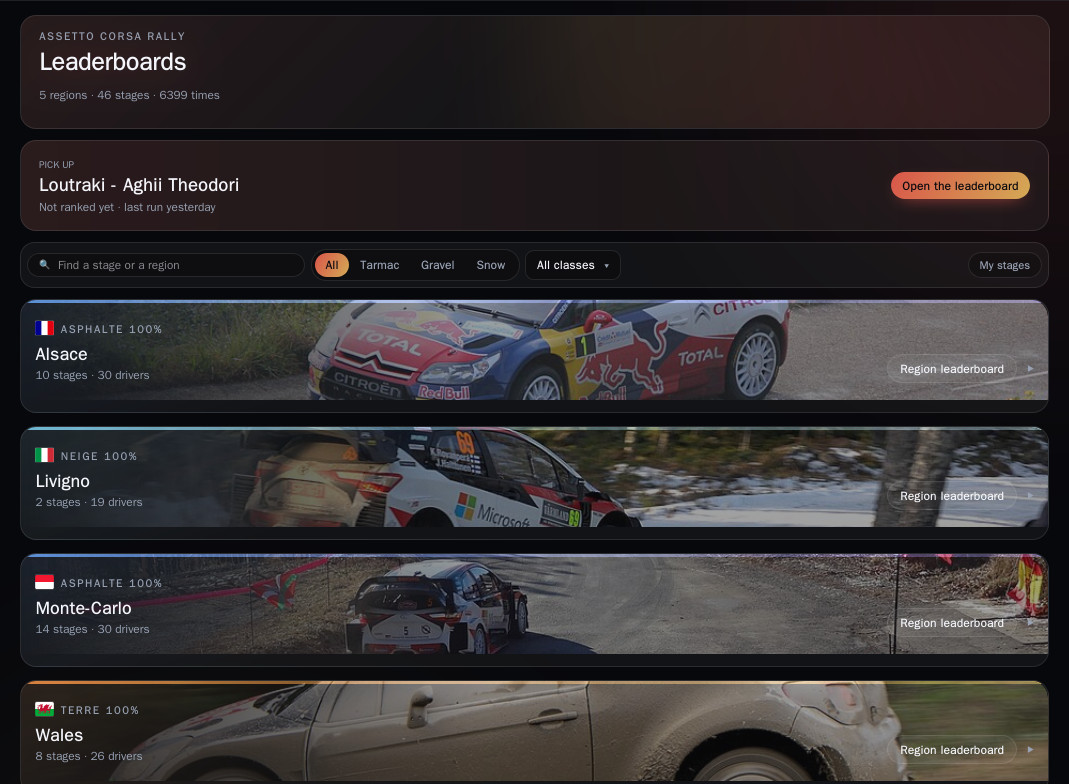
The home page
At the top: the number of regions, stages and times. The Resume banner takes you back to your last stage, with your place ("You are #4 of 23"): Open the leaderboard. Below: the search for a stage or a region, the surface filters (Tarmac, Gravel, Snow) and the class filter, and My stages to keep only the ones you have driven.
1. Pick a stage
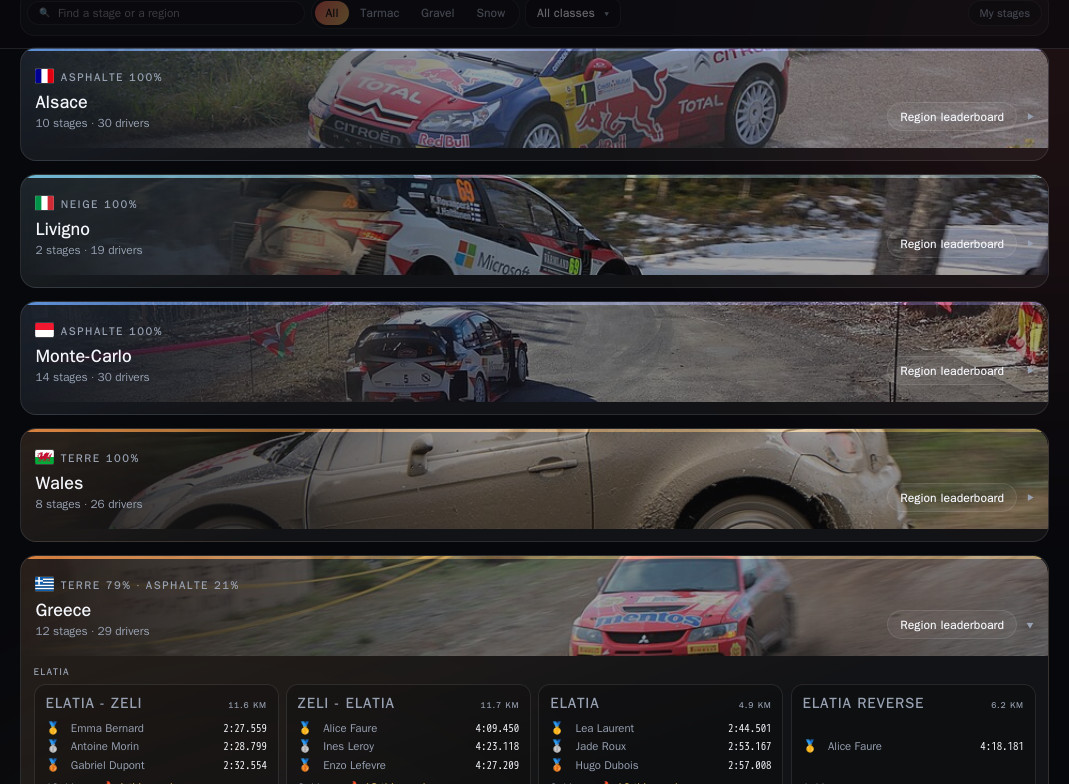
One strip per region, with its surface, its number of stages and drivers. Unfold it: each stage has its card, with its length, its podium, the number of drivers, the week's activity (🔥) and your place if you have driven it (#5). Click a card to open its leaderboard; Region leaderboard opens the one for the whole region.
2. A stage's leaderboard
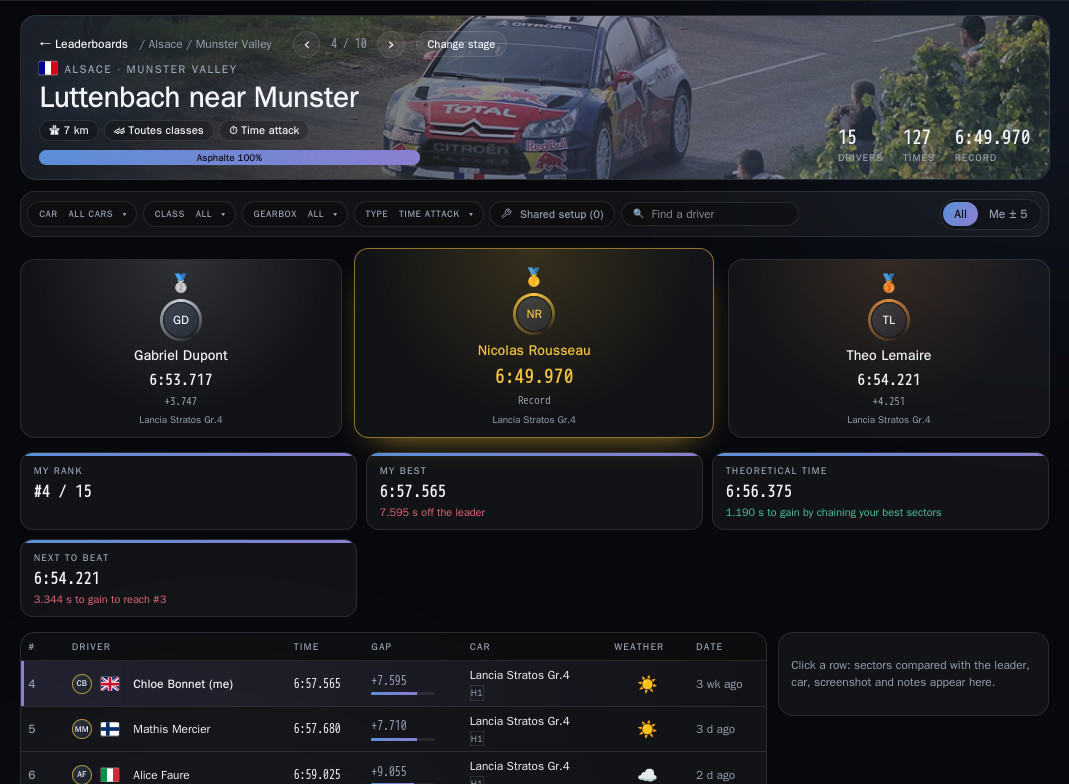
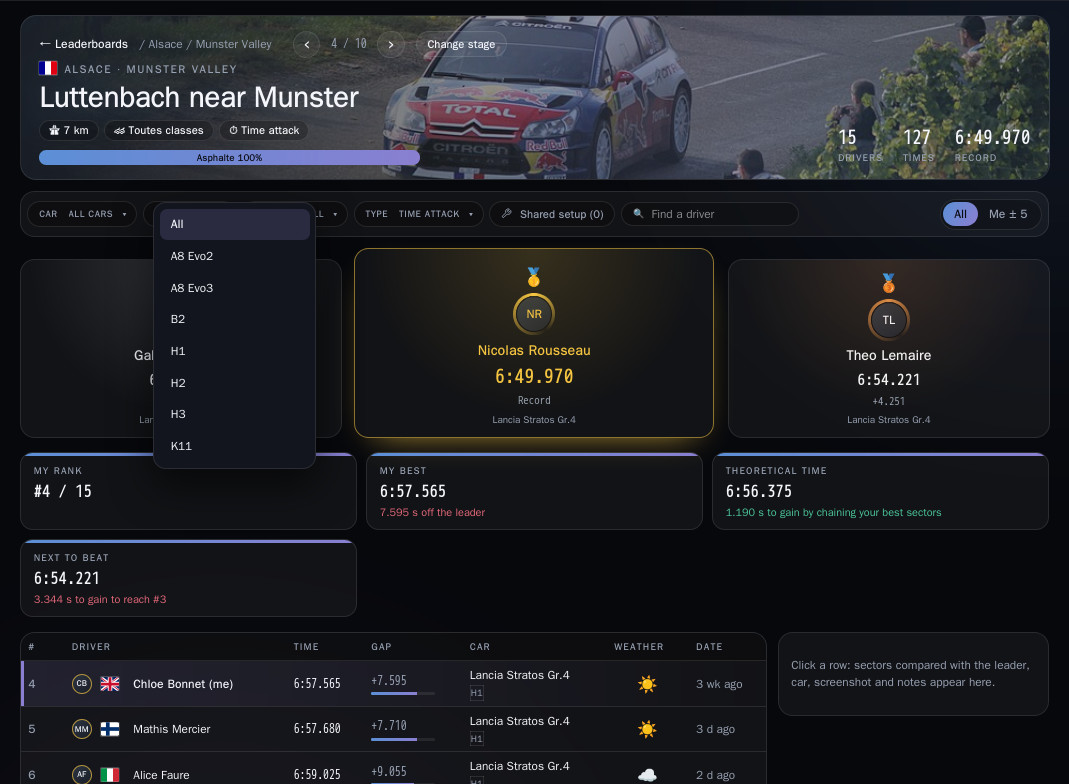
The banner at the top shows the stage (region, distance, surface), the number of drivers and times, and the record. Change stage opens the list by region and by rally; the ‹ › arrows move to the neighbouring stage.
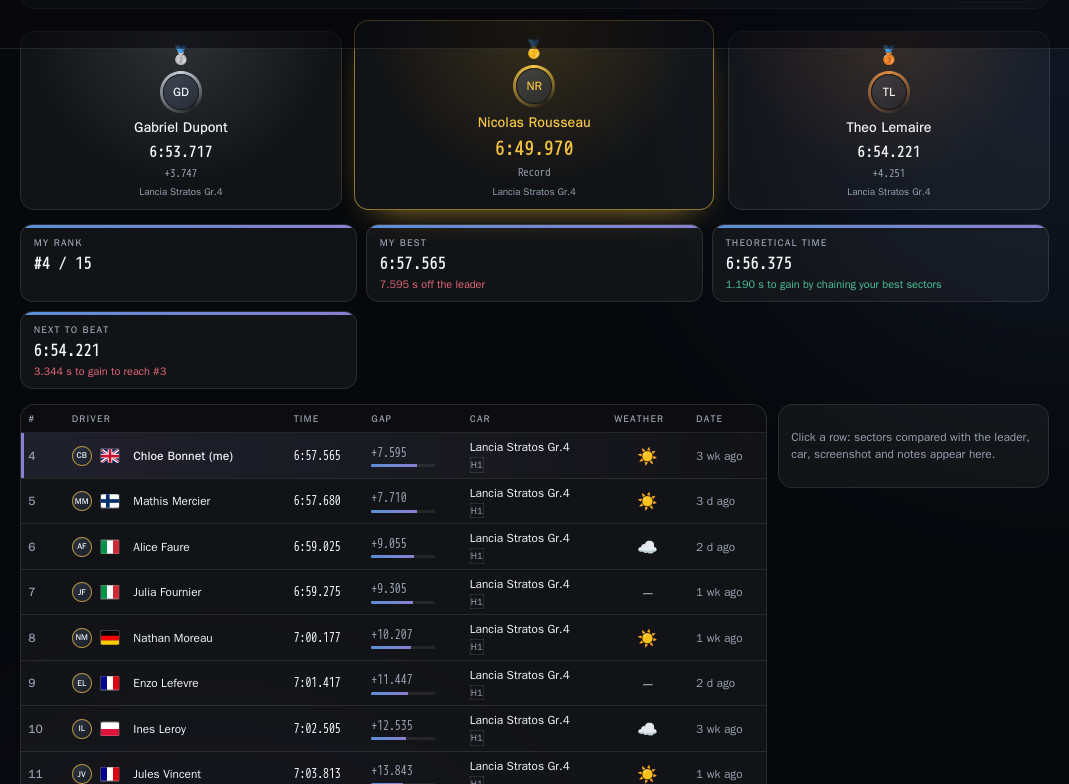
Below: the podium of the top three, and Best per class, the best time in each car class. The table gives each driver's time, gap, car, weather and date.
3. Filter
The Car, Class, Gearbox and Type filters (Time attack by default) narrow the leaderboard so you compare like with like. Class groups similar cars: the Car filter is more direct. Shared setup keeps only the drivers who shared a setup. Find a driver looks up a name.
4. Find your place
Signed in, you see My rank (your place on the scratch, or within the Car / Class filter you chose), My best (and your gap to the leader), your Theoretical time (your best sectors put end to end) and the Next to beat, with the time to gain to pass them. Your row is marked "(me)".
All shows the whole leaderboard; Me ± 5 keeps only the drivers around you.
5. Go further from a row
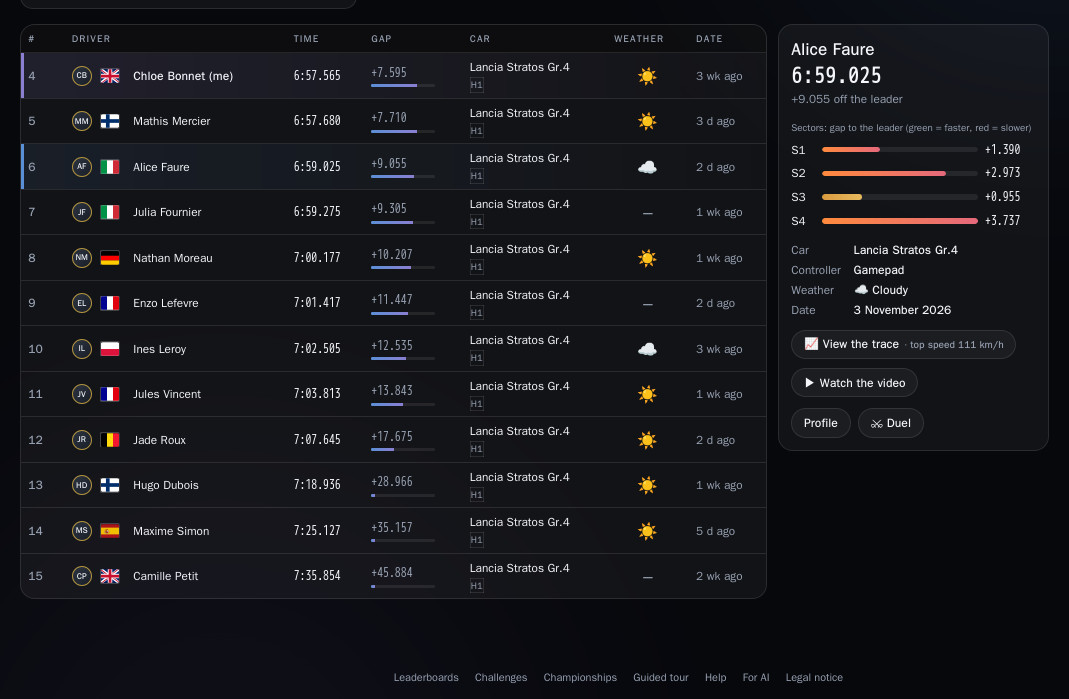
Click a row: the panel on the right details the time, with the gap to the leader and your sectors compared with the leader (green = faster, red = slower), then the car, controller, weather and date.
- Profile opens the driver's page;
- ⚔ Duel compares you with them sector by sector (see the guide "Duel: me versus another driver");
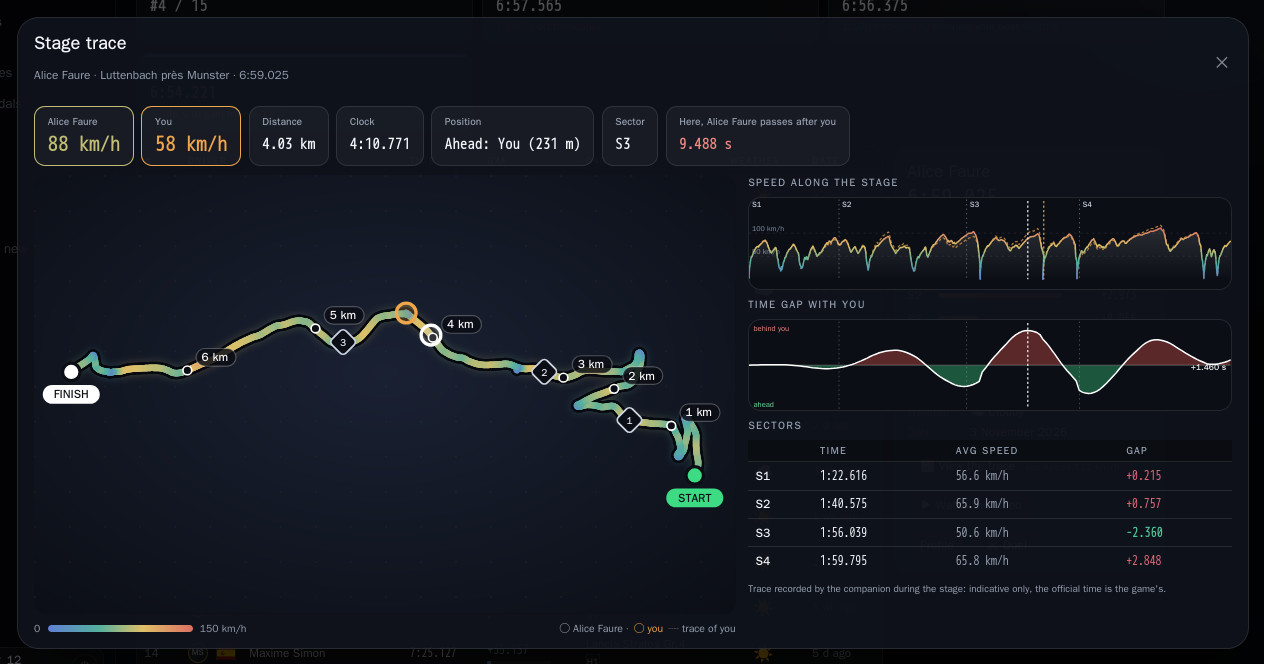
- 📈 View the trace opens the time's driving trace (see point 6) when the driver has one and shares it;
- Screenshot, ▶ Watch the video and Setup appear when the driver added them. A small 🔧 on the row marks a shared setup.
To have your times land here by themselves, install the companion (see the guide "Install and link the companion").
6. View the trace and compare
When a row has a trace, the right-hand panel offers View the trace. On your row you see your own trace. On another driver's row you see their trace against yours (if you have a trace on the same stage): the time gap along the stage and sector by sector, with two markers moving at the same moment. Hover the trace or a chart: the banner on top then shows both speeds, the clock, who is ahead and by how many metres, the sector and the gap at that exact spot (a metre-by-metre comparison). A trace is visible to others only if its driver chose to share it (My account › Companion › Driving traces).